
Integration
From a Burp capture to a test you can run again.
The VirtuProbe Bridge extension moves a request between Burp Suite and VirtuProbe in either direction. Send a capture over as an HTTP probe, or take a probe from VirtuProbe into Repeater to work on it by hand.
Once a request is in VirtuProbe it behaves like any probe you authored yourself, so you can put it in a chain, extract values from its response and fuzz it (fuzzing is on the Security tier and above).
Burp → VirtuProbe
Keep a capture as a probe
Import the request and, when Burp has its response, build a regression test from it in the same step.
VirtuProbe → Burp
Send a probe to Burp
Open a probe in Repeater, Intruder, Organizer or the site map with its variables already resolved.
Burp → VirtuProbe
Send a request into VirtuProbe.
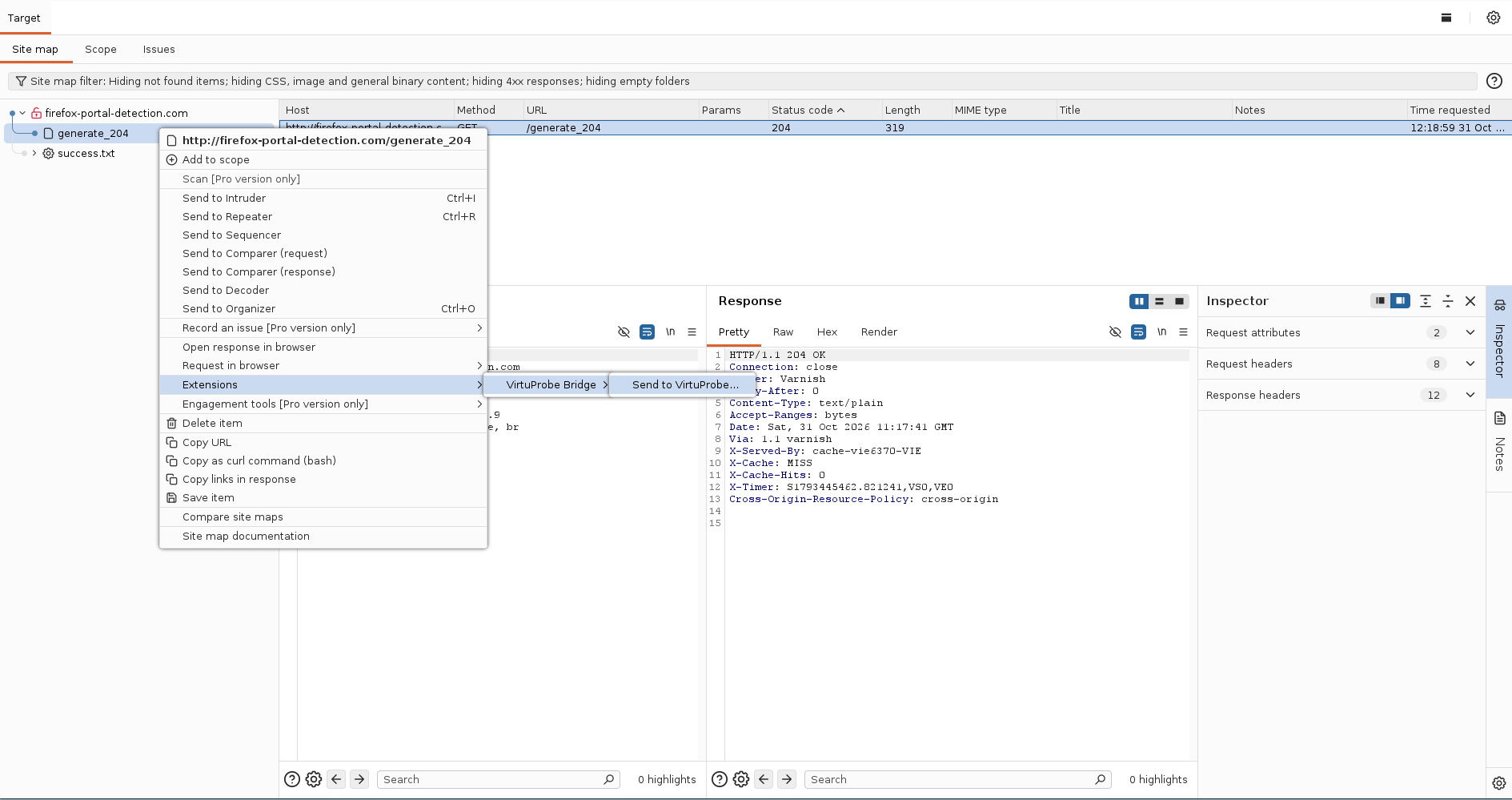
Right-click a request in the proxy history, the target site map or Repeater and choose Extensions → VirtuProbe Bridge → Send to VirtuProbe. Select several first and the menu sends them together.
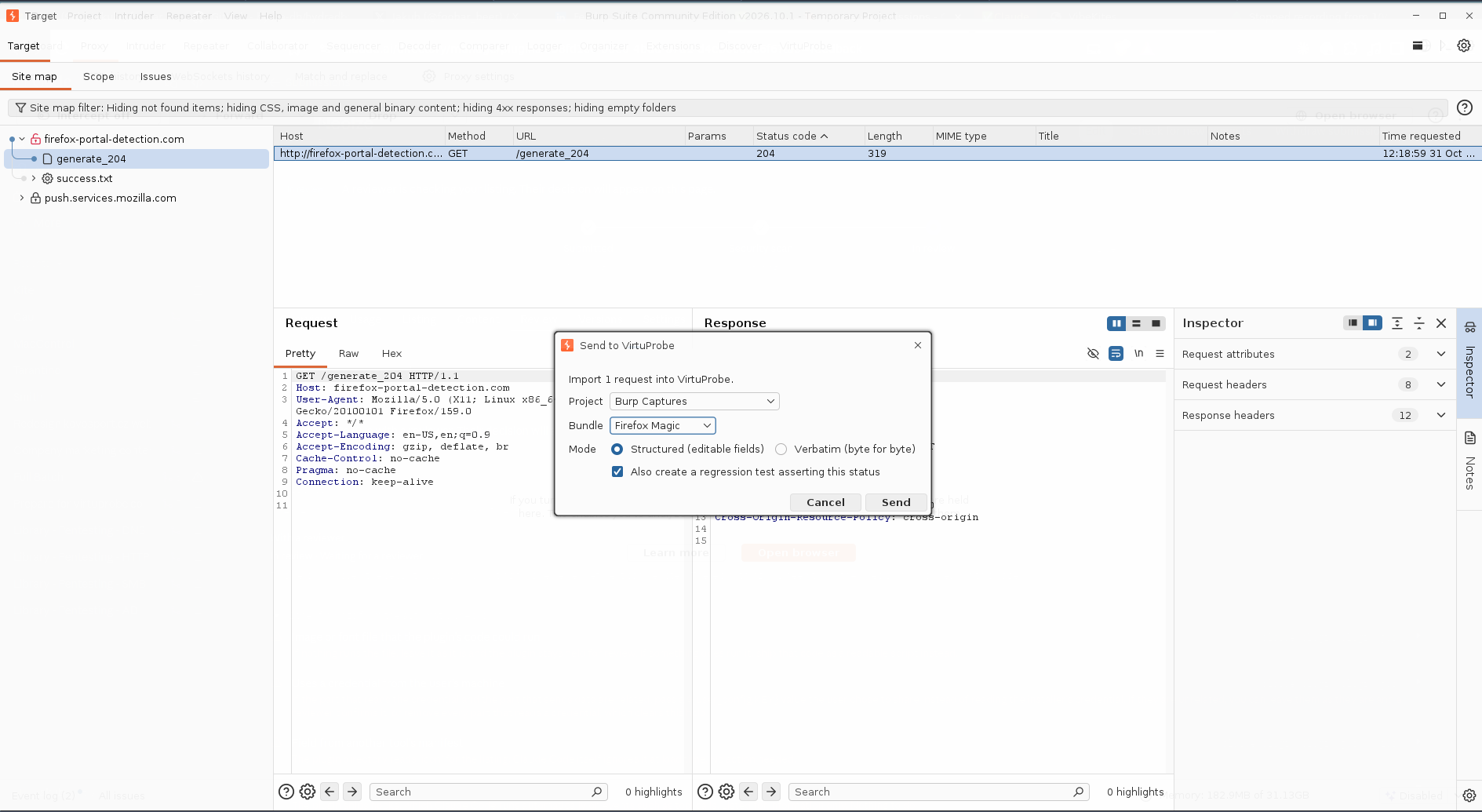
A dialog asks where the request lands. Project and Bundle pick the destination. Use + New bundle to make one for the capture.
- Structured fills the method, URL, headers and body into editable fields.
- Verbatim keeps the exact bytes Burp captured with nothing normalized on the way in. Choose it when the precise shape of the request matters.
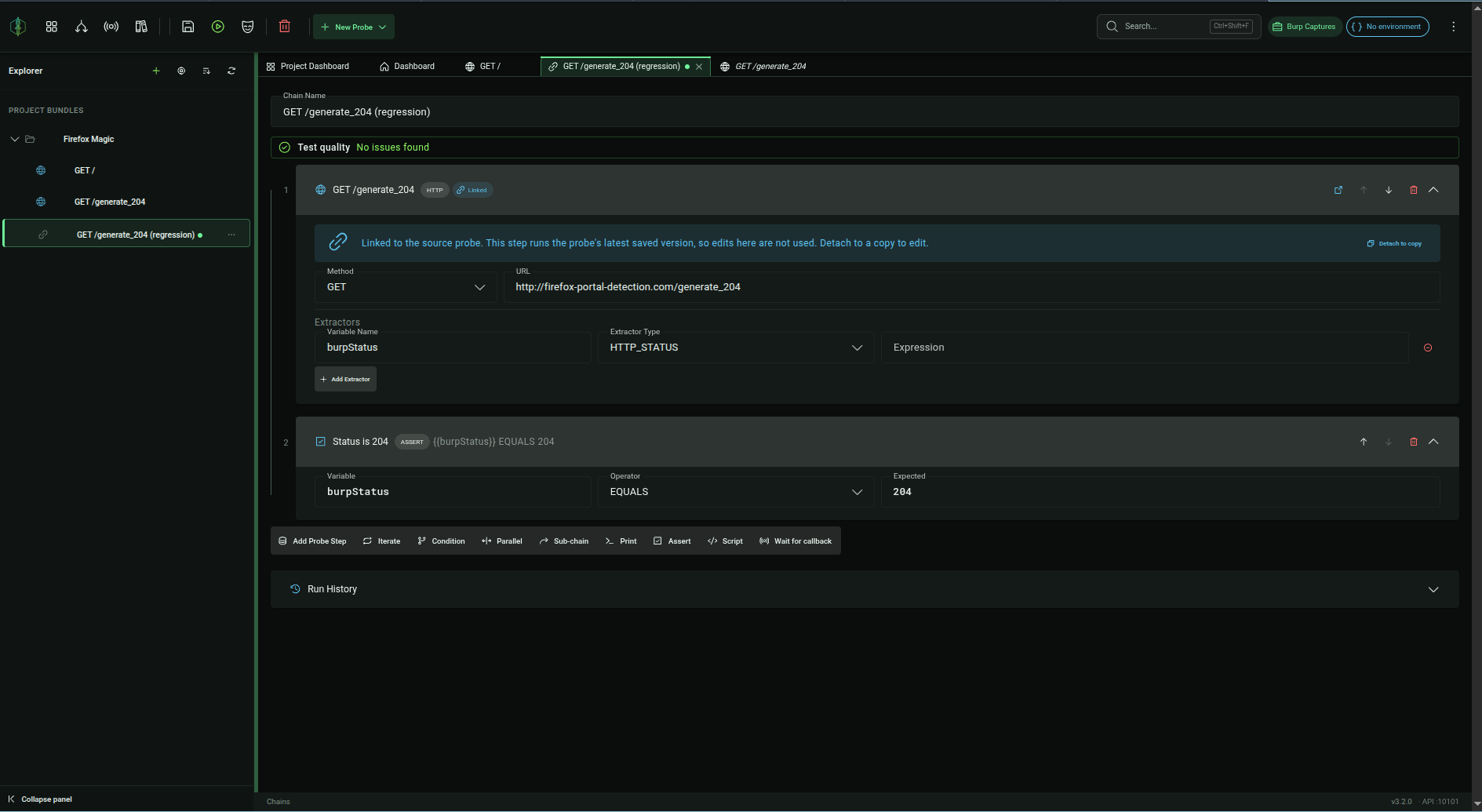
- Also create a regression test asserting this status builds a chain beside the probe. It runs the request and checks the same response status Burp saw, so what you found by hand can run again on demand.
The regression test needs a response to work from, so it is offered for a single request only. If Burp has no response for that request, the probe still imports and no test is created.
VirtuProbe → Burp
Send a probe back to Burp.
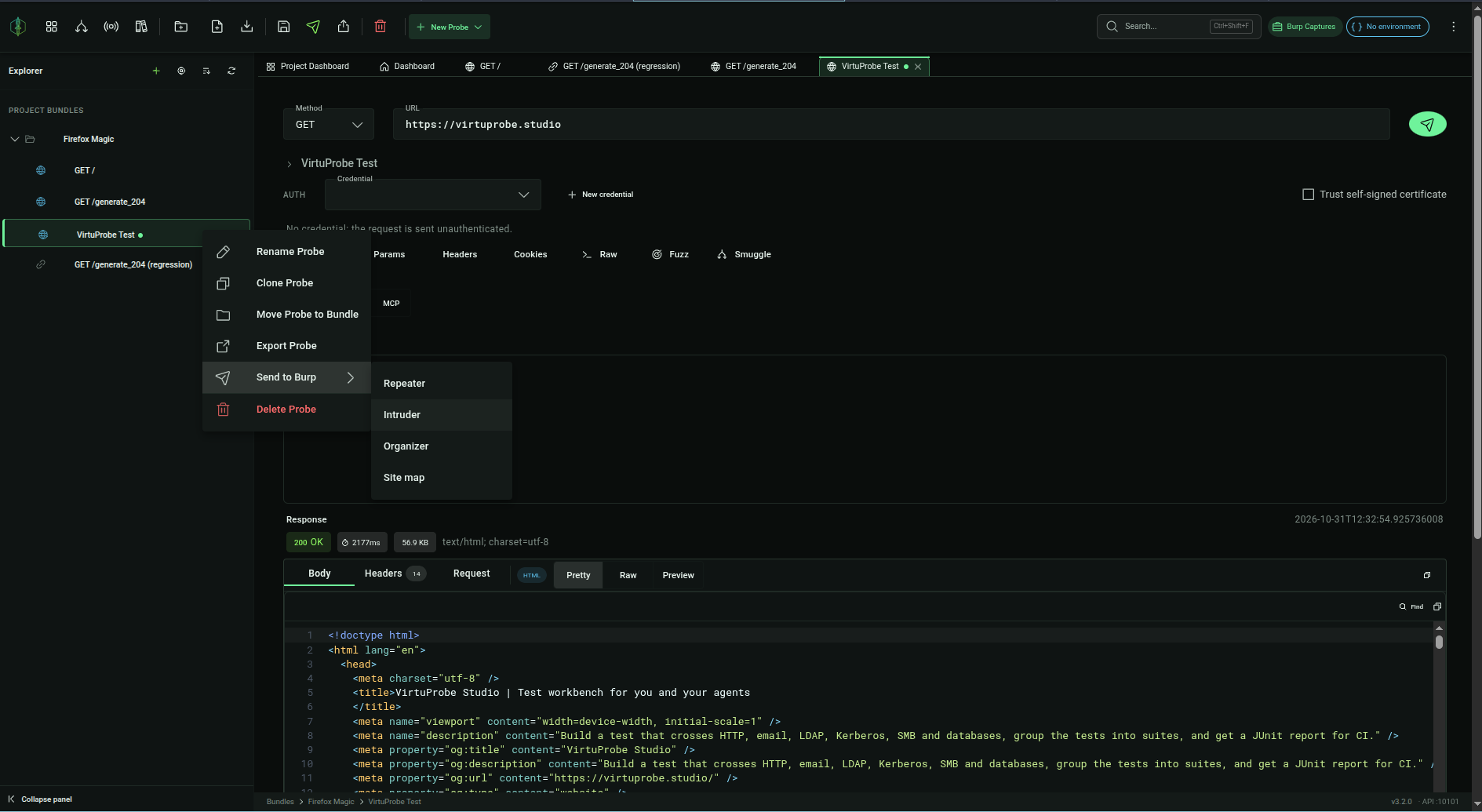
In the VirtuProbe Explorer, right-click an HTTP probe and open Send to Burp. VirtuProbe resolves the probe against your active environment first, so {{variables}} arrive filled in rather than as placeholders.
- Repeater opens it in a new tab, named after the probe.
- Intruder does the same, ready for you to mark payload positions.
- Organizer parks it in your Organizer list.
- Site map files the URL under Target without sending anything.
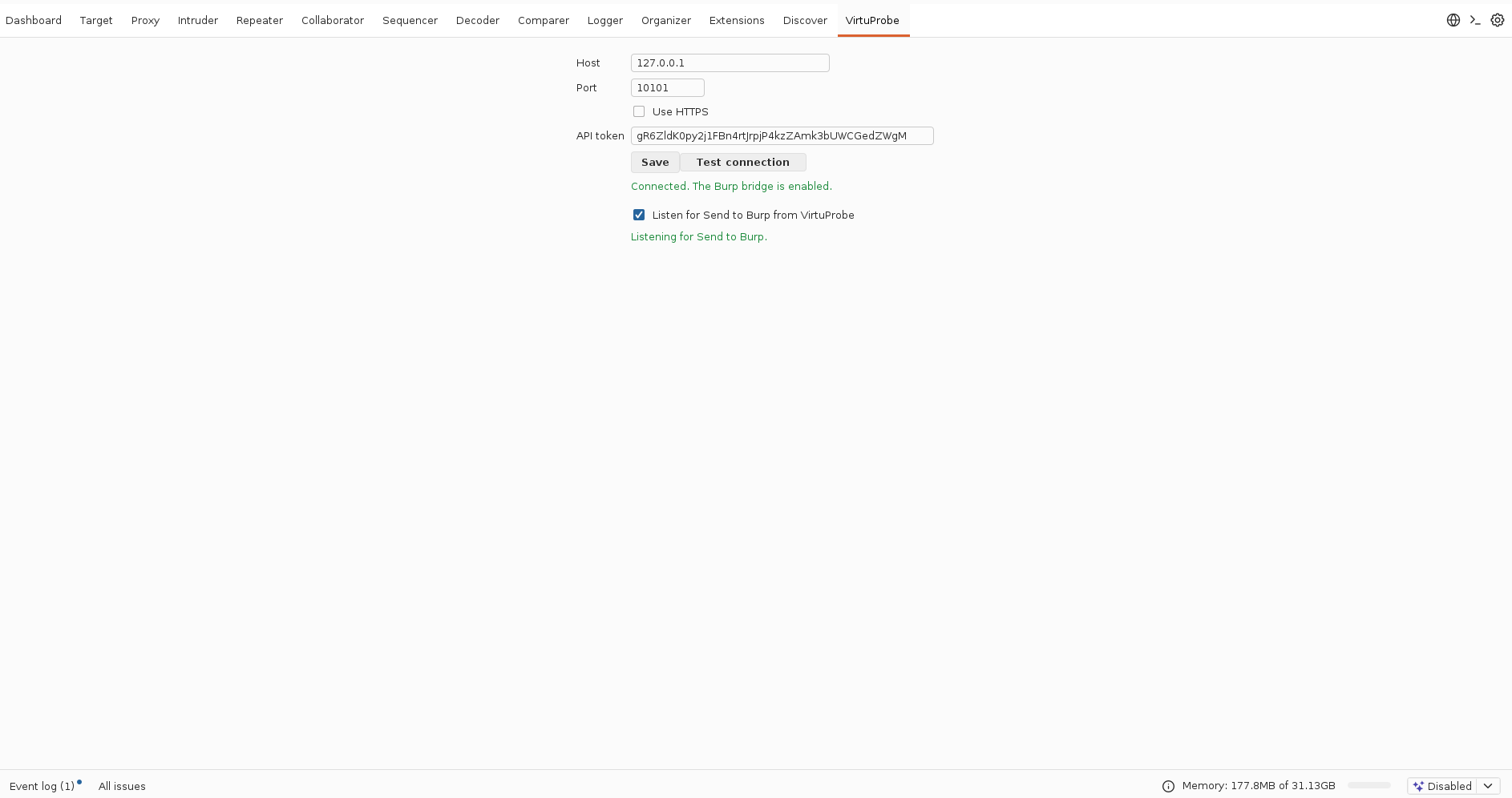
Burp collects these while Listen for Send to Burp from VirtuProbe is switched on in the VirtuProbe tab, which is the default. With it off, nothing arrives: VirtuProbe holds the request for five minutes and then drops it.
Setup
Switch on the bridge setting, then load the extension.
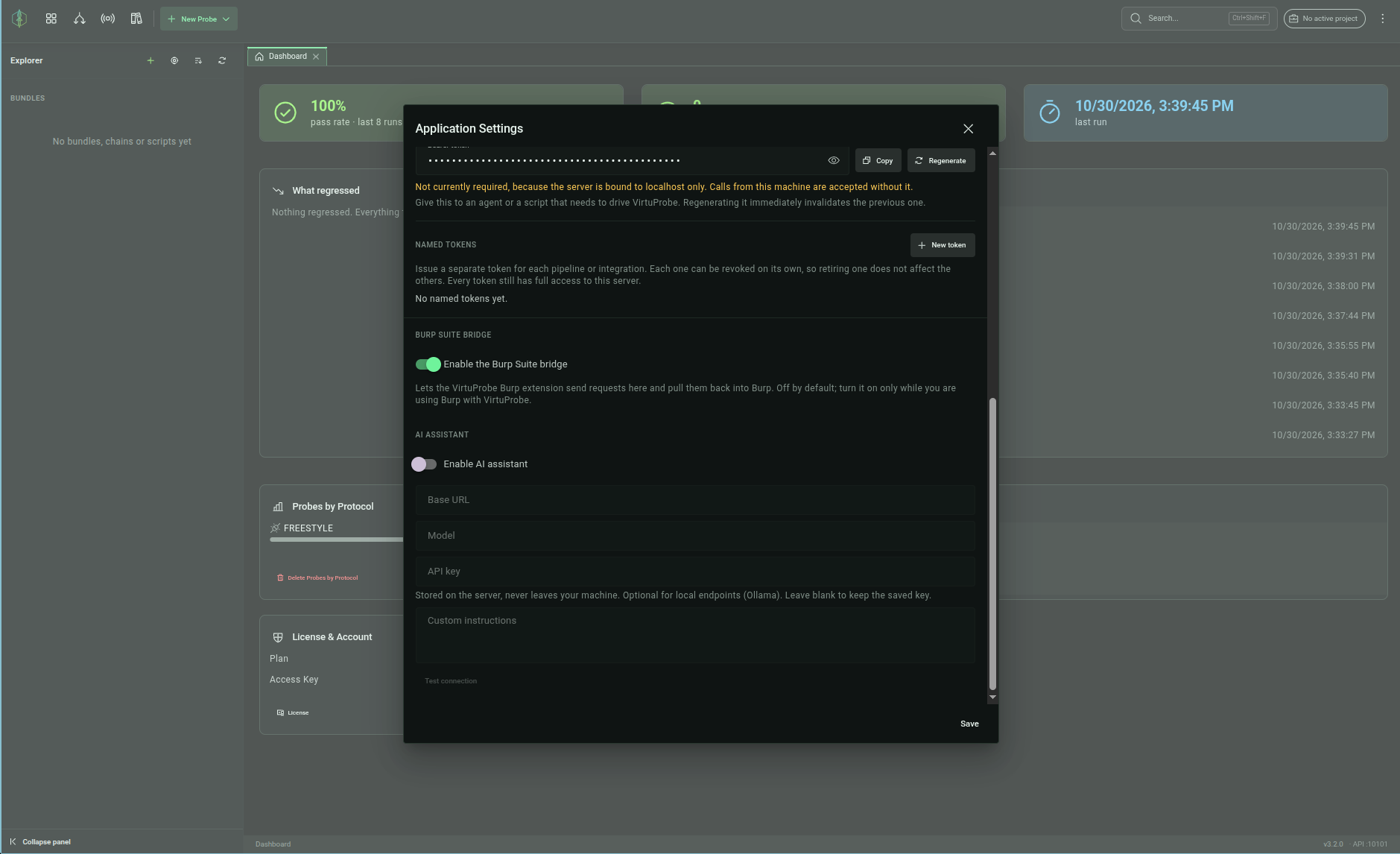
The Burp Suite bridge setting is off by default. While it is off, VirtuProbe refuses every request from the extension. Open Settings, find the Burp Suite bridge section and switch on Enable the Burp Suite bridge, then click Save. Turn the setting off again when you are done.
Get the extension
Download virtuprobe-bridge.jar. It is open source under the MIT license, so you can read what it does before you load it into Burp. If you would rather build the jar yourself, the source is on GitHub.
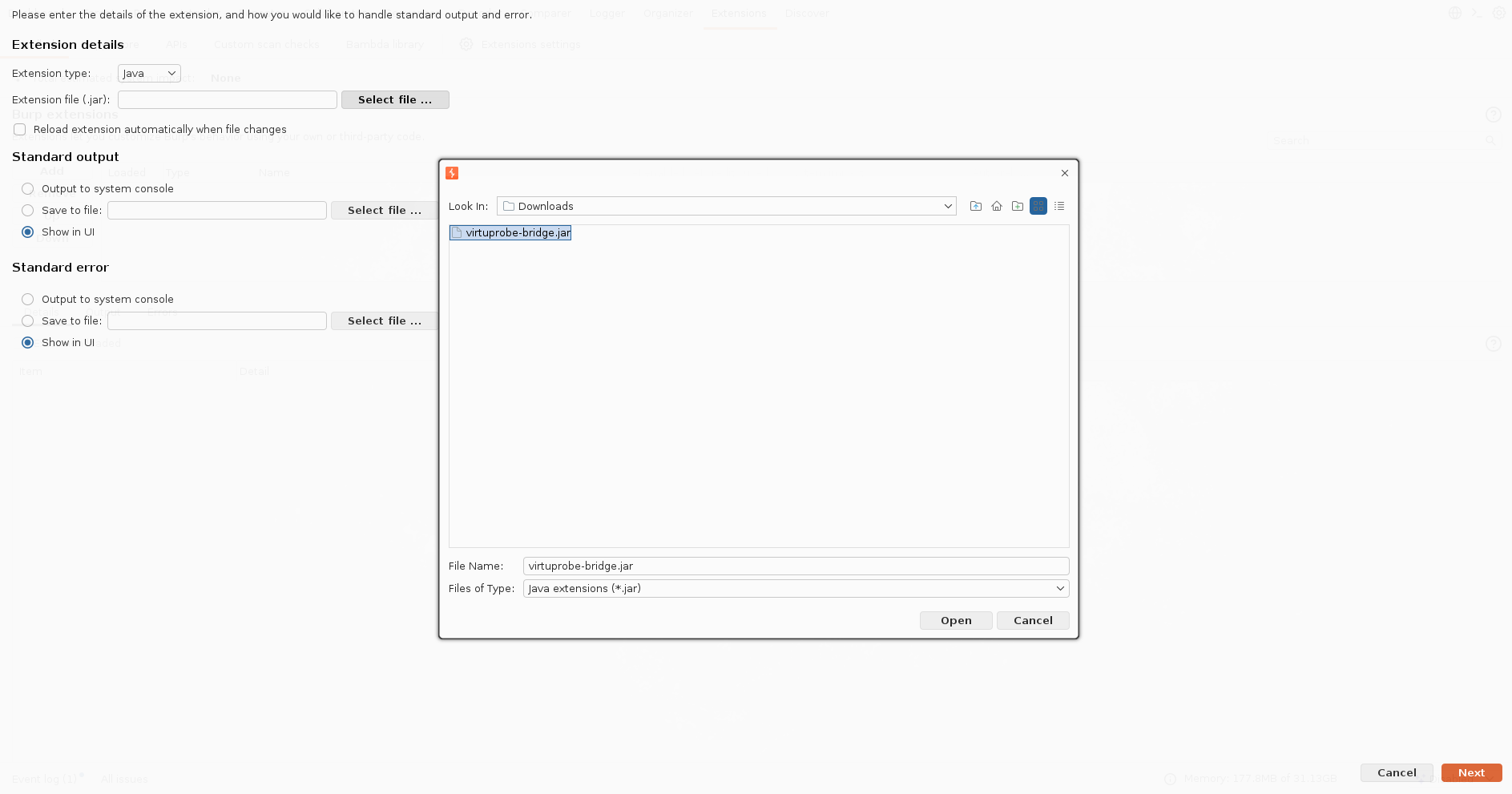
- In Burp Suite, open Extensions → Installed.
- Click Add and set Extension type to Java.
- Select the extension jar and confirm.
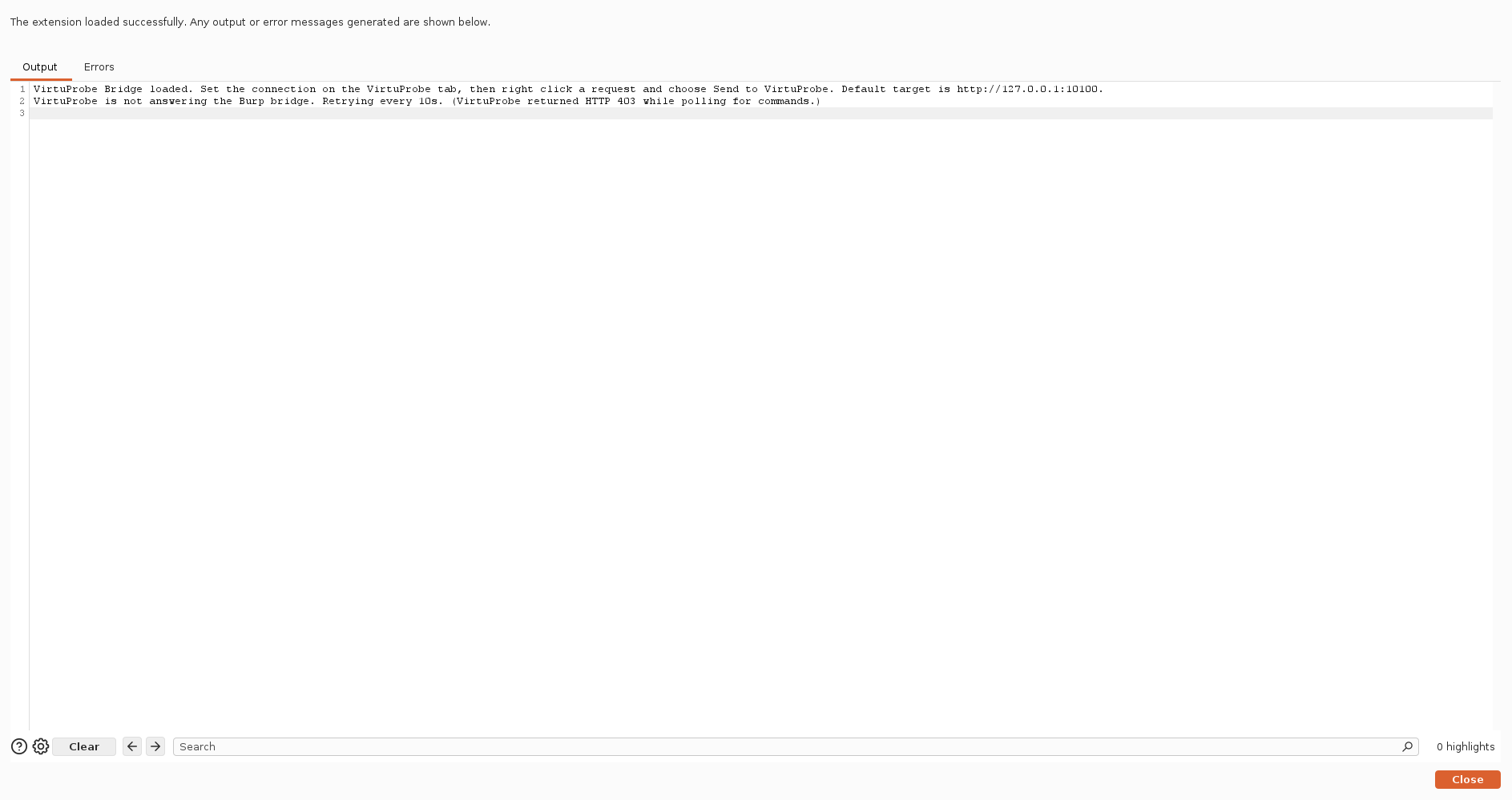
The extension adds a VirtuProbe tab to Burp. The VirtuProbe host and port there default to 127.0.0.1:10100, where a desktop install listens on the same machine. Change them only if you moved the port or VirtuProbe runs on another machine. If VirtuProbe asks for a token, paste the API access token from VirtuProbe Settings into API token. Test connection checks that Burp can reach VirtuProbe and that the bridge setting is on.
Only send requests for systems you are authorized to test.
Download VirtuProbe Bridge.
Switch on the Burp Suite bridge setting in VirtuProbe, load the extension into Burp and move a request either way.
Open source, MIT. Works with a free VirtuProbe install.